Multi-Factor Authentication (MFA)
IOTMER supports TOTP-based MFA (compatible with Google Authenticator, Authy, 1Password, etc.).
Enable MFA
- Go to Account Settings → Security
- Click Enable MFA
- Scan the QR code with your authenticator app
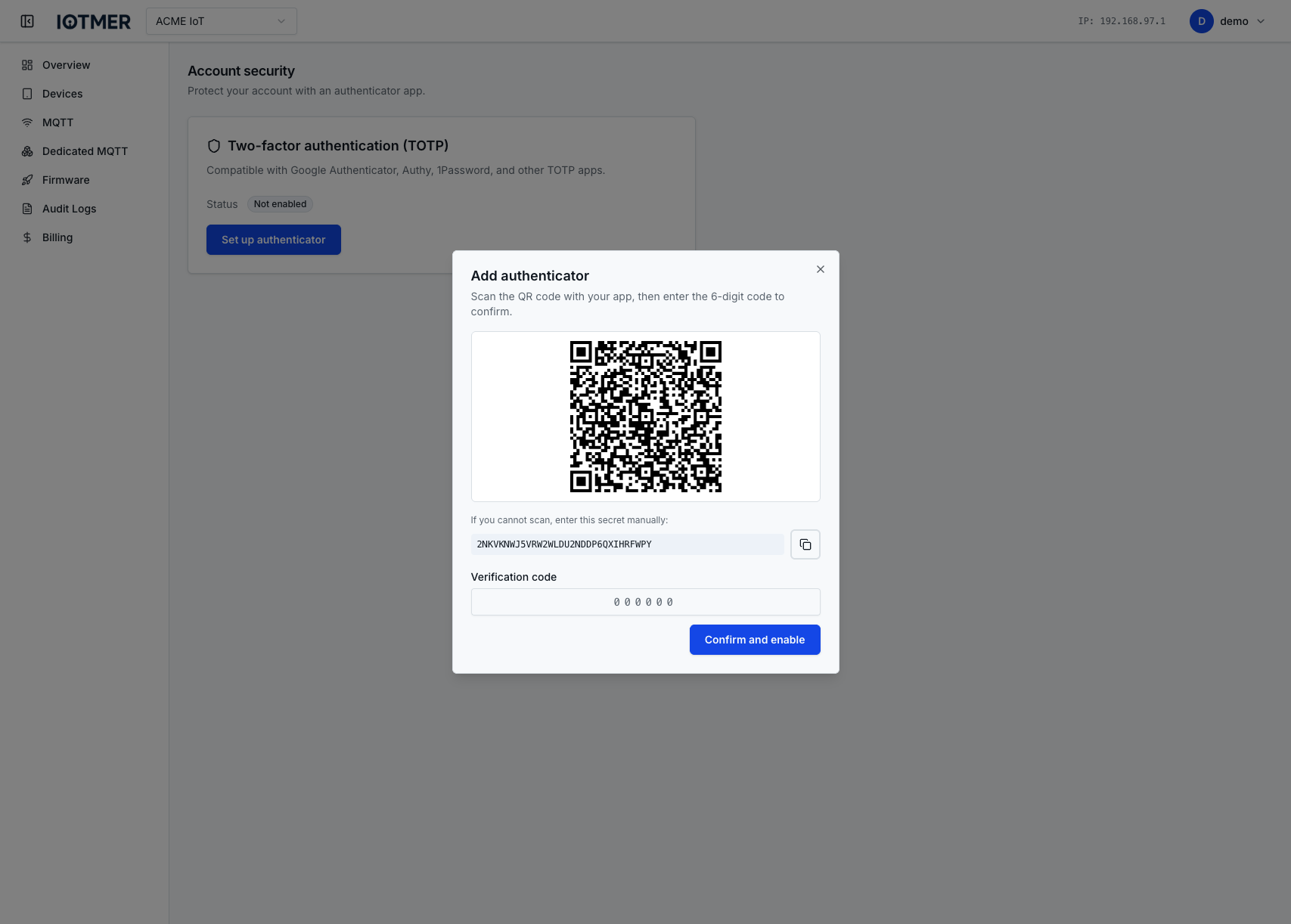
- Enter the 6-digit code from your app to confirm setup
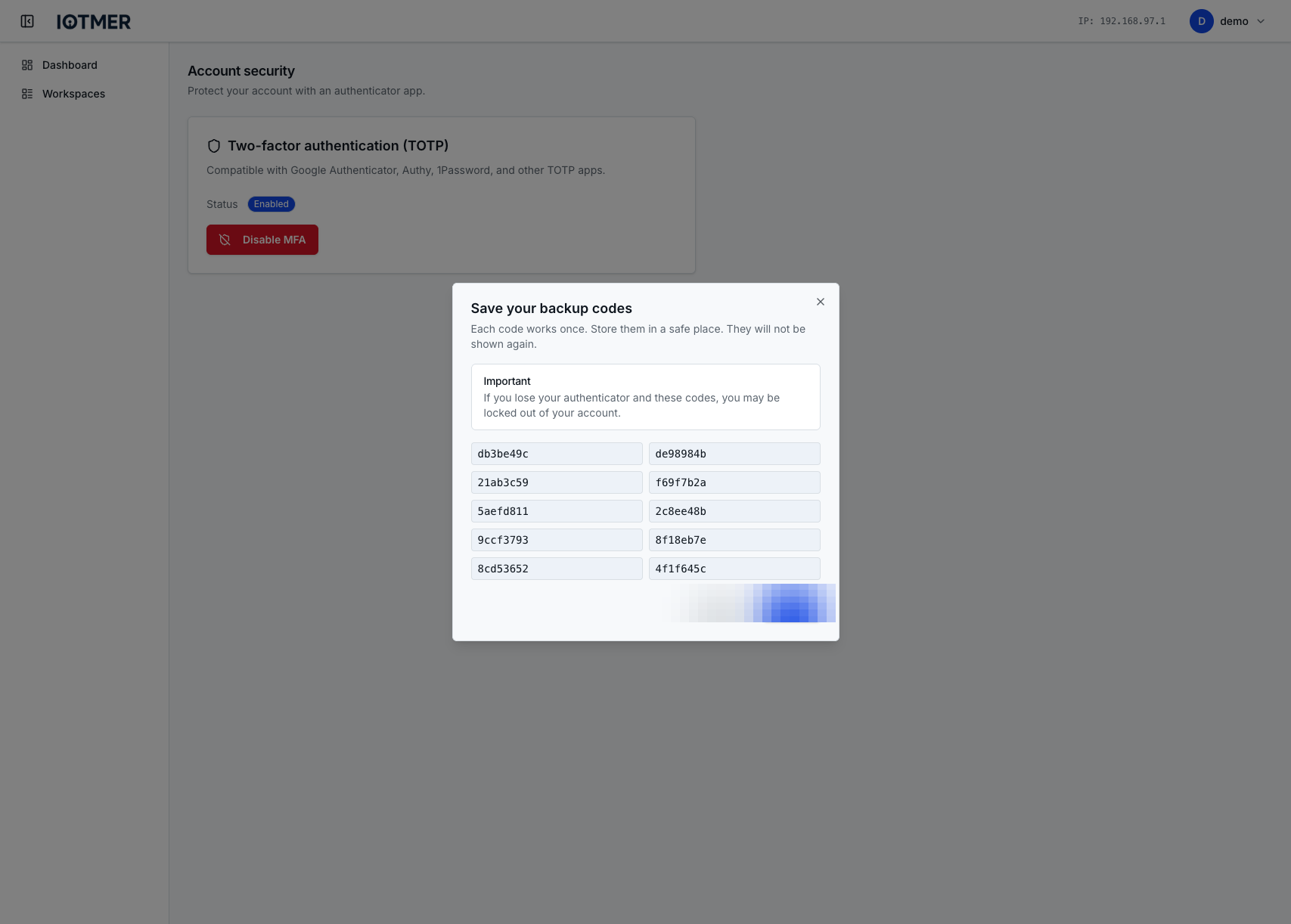
- Save your backup codes in a secure location — these are shown once
Login with MFA
After entering your password, you will see a second prompt:
Enter the current 6-digit code from your authenticator app.
Disable MFA
- Go to Account Settings → Security
- Click Disable MFA
- Confirm with your current TOTP code
caution
Disabling MFA reduces the security of your account. Only do this if you intend to re-enroll with a new device.
Lost access to your authenticator
Contact IOTMER support with proof of account ownership to initiate an account recovery process.