Device MQTT ACLs
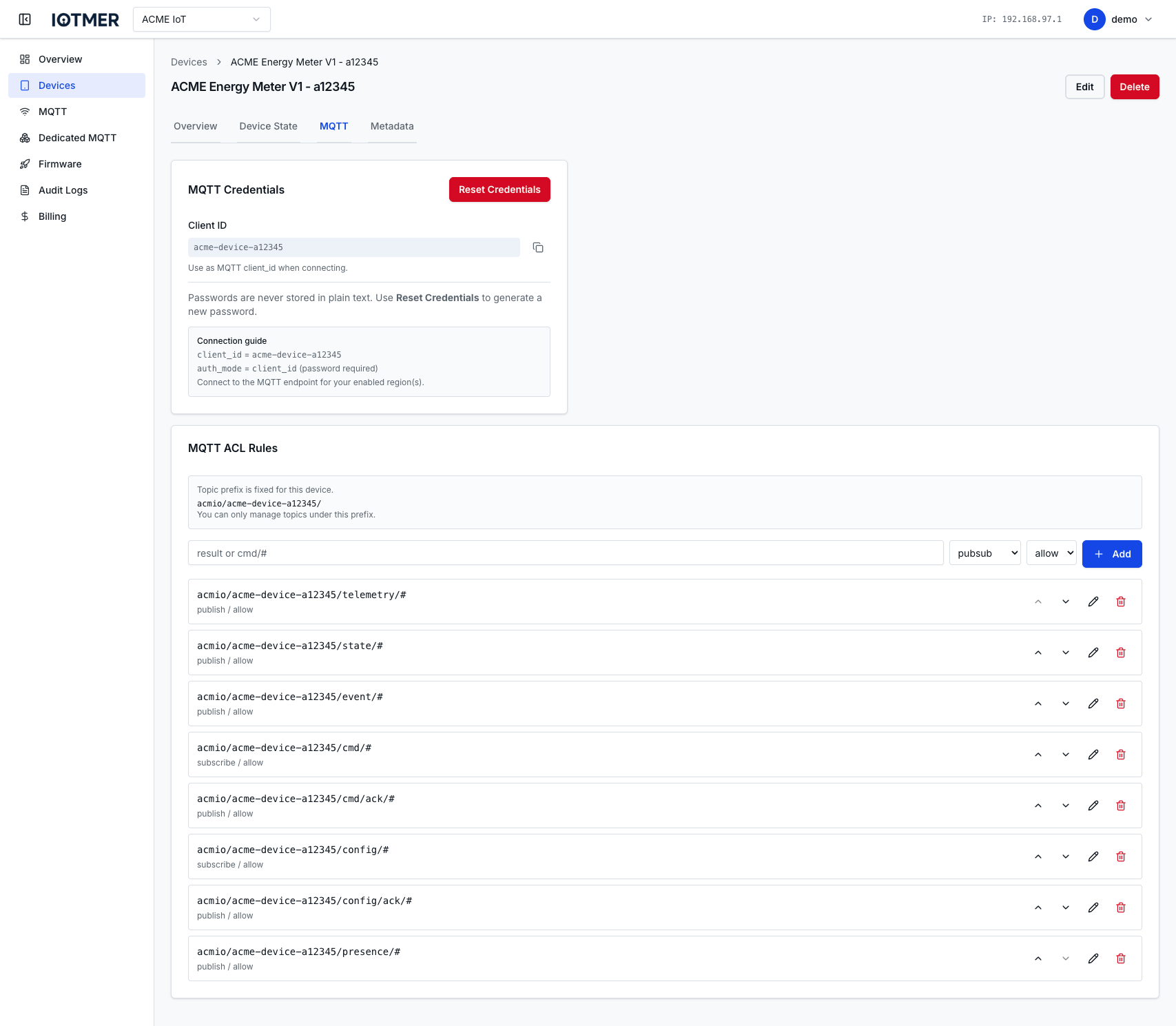
Every device has its own ACL list controlling which MQTT topics it can publish to or subscribe from. ACLs are evaluated in order — first match wins.
Topic naming standard
Topic filters you configure for a device must start with the workspace slug, followed by /:
{workspace_slug}/…
Example: if the workspace MQTT prefix is acme, every allowed pattern begins with acme/.
Isolating devices
Each device is issued its own MQTT credentials (username and password). To keep traffic and ACLs clearly scoped per device, prefer paths that include both the workspace and the device key after the prefix:
{workspace_slug}/{device_key}/<segment>/…
That way templates and rules line up with how the broker routes traffic, and one device’s topic tree does not overlap another’s under the same workspace.
The console may ask only for the segment after the shared prefix (as in device templates); the effective topic still resolves under {workspace_slug}/{device_key}/….
Wildcards: + and # (subscribe / read)
MQTT defines two wildcards for topic filters used when subscribing (i.e. when the client reads messages). They are not used inside literal topic names when publishing (writing): a publish must use a concrete path with real segments — you cannot publish to sensors/+/temp or factory/#.
| Symbol | Role | Typical use |
|---|---|---|
+ | Single-level wildcard — matches exactly one topic level | acme/my_device/+/telemetry matches acme/my_device/room1/telemetry but not acme/my_device/room1/indoor/telemetry |
# | Multi-level wildcard — matches zero or more trailing levels; may only appear at the end of the filter | acme/my_device/cmd/# matches acme/my_device/cmd and acme/my_device/cmd/reboot |
Summary: use + and # in subscribe ACL rules (or in application code on subscribe calls). Publish operations must use fully specified topic strings without these characters.
Default ACLs
When a device is created from a template, the template's default ACLs are applied. For blank devices, the ACL list starts empty — which means no access unless rules are added.
Add an ACL rule
- Go to device detail → MQTT tab.
- Click Add Rule
- Set action, topic pattern, and permission
- Click Save
Or via API:
POST /workspaces/{id}/devices/{device_id}/mqtt/acls
Content-Type: application/json

{
  "action": "publish",
  "topic": "acme/my_device_key/telemetry",
  "permission": "allow"
}
Replace acme with your workspace slug and my_device_key with the device’s key so the rule matches your naming standard.
Common patterns
Assume workspace_slug = acme and device_key = sensor-01.
# Device publishes telemetry on a fixed leaf topic (no wildcards on publish)
action: publish   | topic: acme/sensor-01/telemetry              | permission: allow

# Device subscribes to all commands under a branch (wildcard on subscribe only)
action: subscribe | topic: acme/sensor-01/cmd/#                  | permission: allow

# Backend-style subscribe: one level of variability under this device
action: subscribe | topic: acme/sensor-01/streams/+/events       | permission: allow

# Deny catch-all (example — adjust to your policy)
action: pubsub    | topic: acme/#                                | permission: deny
Reorder rules
Drag rules in the console to change evaluation order. Or use:
POST /workspaces/{id}/devices/{device_id}/mqtt/acls/reorder